
Every KwickCafe feature, with real screens
From the first bill of the morning to the month-end GST return. Jump to the part you care about.
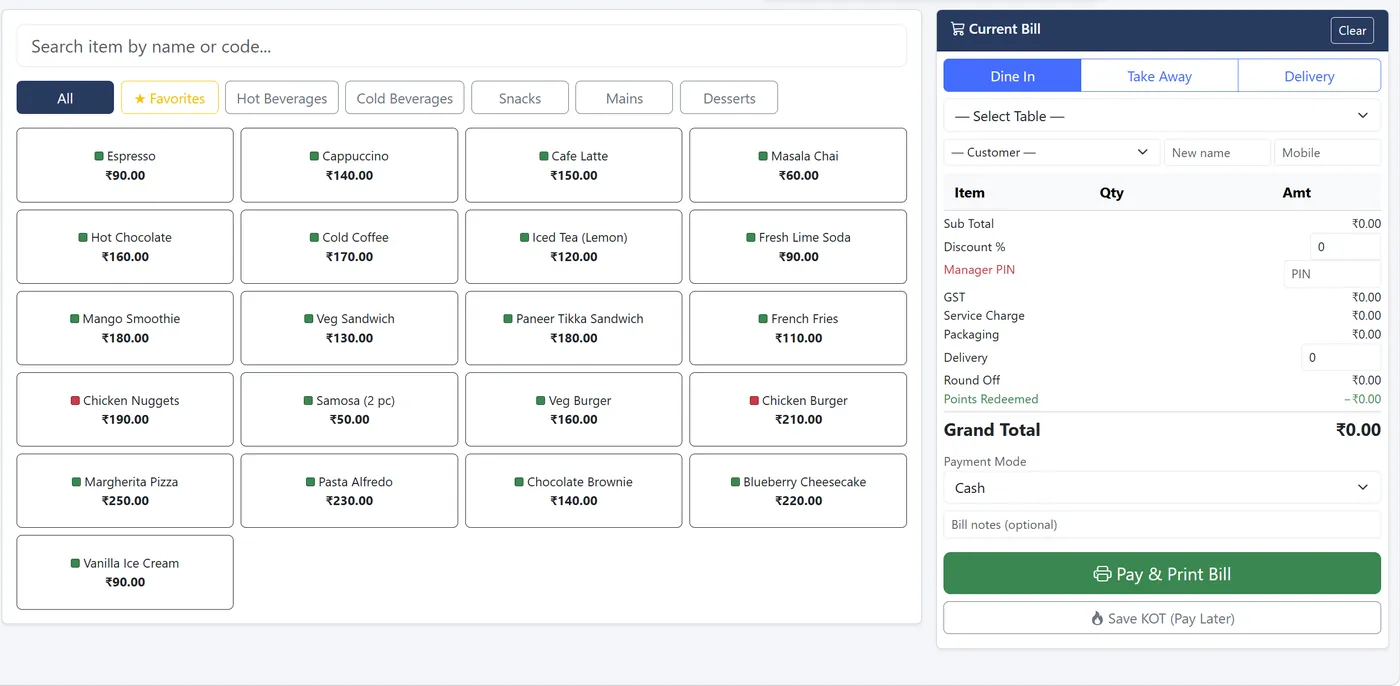
POS billing that a new cashier picks up in minutes
Find an item three ways: tap a category, search by name or short code, or open Favorites for the fast movers. Green and red dots mark veg and non-veg everywhere.
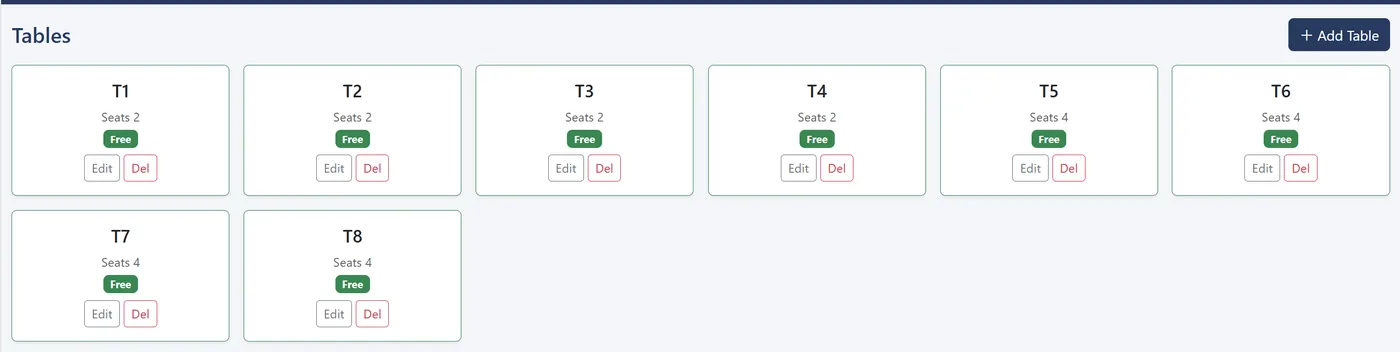
- Dine in with table selection, Take away and Delivery
- Sizes (Small, Medium, Large) and add-on groups with their own prices
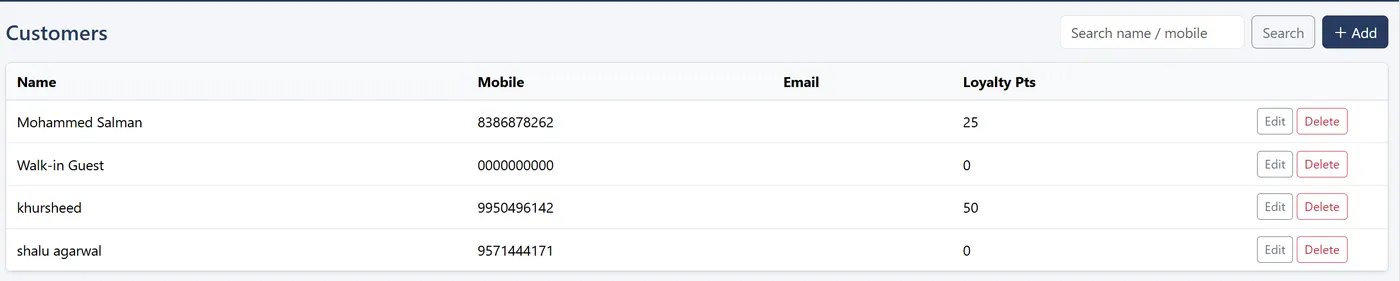
- Customer recall by mobile number with loyalty balance and points redemption
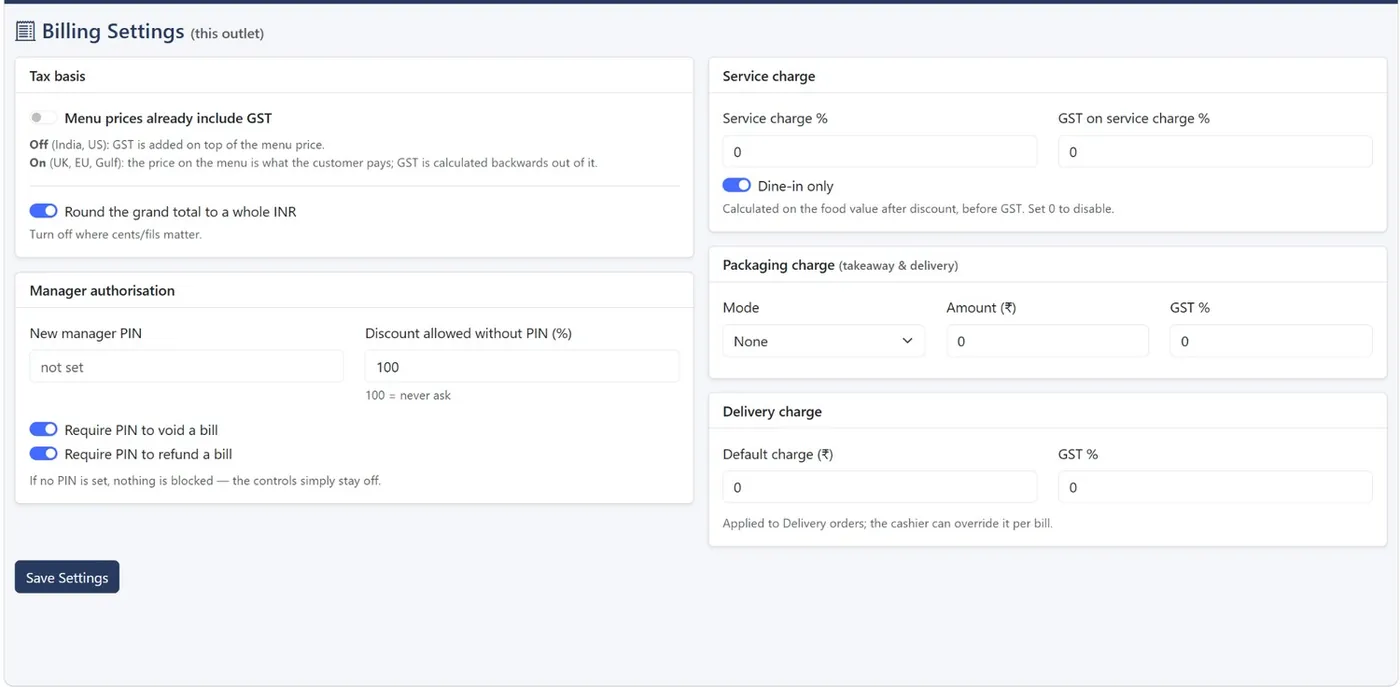
- Discount %, with a manager PIN above each role's limit
- Service charge, packaging and delivery charges, taxed correctly; optional round-off
- Cash, card, UPI, wallet or online, and split payment across modes
- Save KOT and settle later for dine-in
- After billing: transfer table, merge, split by item or quantity, void with PIN, refund
Kitchen Display System (KDS) instead of paper tickets
Orders appear on the kitchen screen the moment they're billed, with no refreshing. A LIVE badge shows the connection is working.
- Status colours: blue new, amber cooking, green ready
- Waiting-time badge turns amber after 8 minutes, then red
- One button moves the order: start cooking, mark ready, mark served
- Shows table, quantities, size, add-ons and the cashier's note
- Recovers by itself if the Wi-Fi drops
- 2 × Masala Chai
- 1 × Samosa (2 pc)
- 1 × Margherita Pizza
- 1 × Cold Coffee, Large
- 2 × Veg Sandwich
- 1 × Mango Smoothie
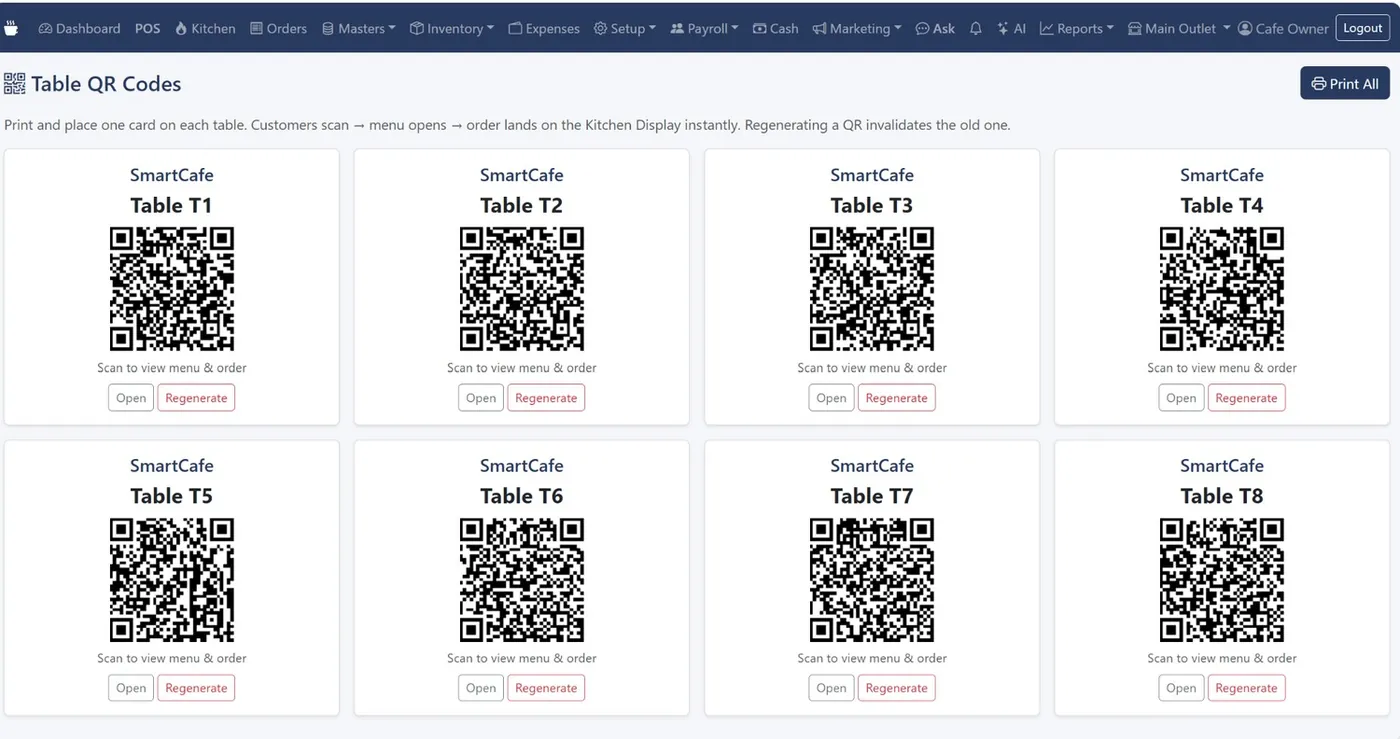
QR code table ordering
Print a QR card for each table. Guests scan it, browse the menu with photos and order from their own phone.
- QR orders arrive on the kitchen screen and in Orders, marked as QR
- Regenerate a lost card and the old code stops working instantly
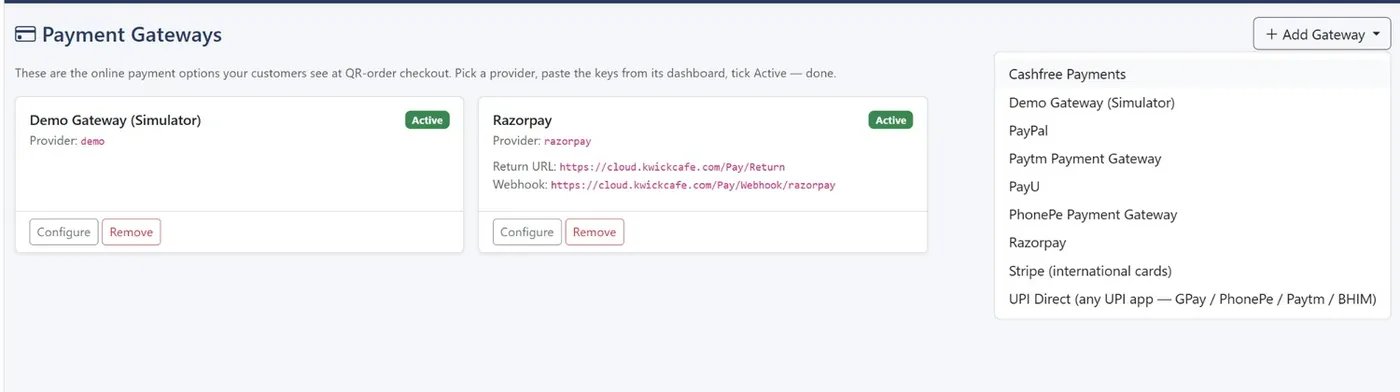
- Online payment through UPI Direct, Razorpay, PhonePe, Paytm, Cashfree, PayU, Stripe or PayPal
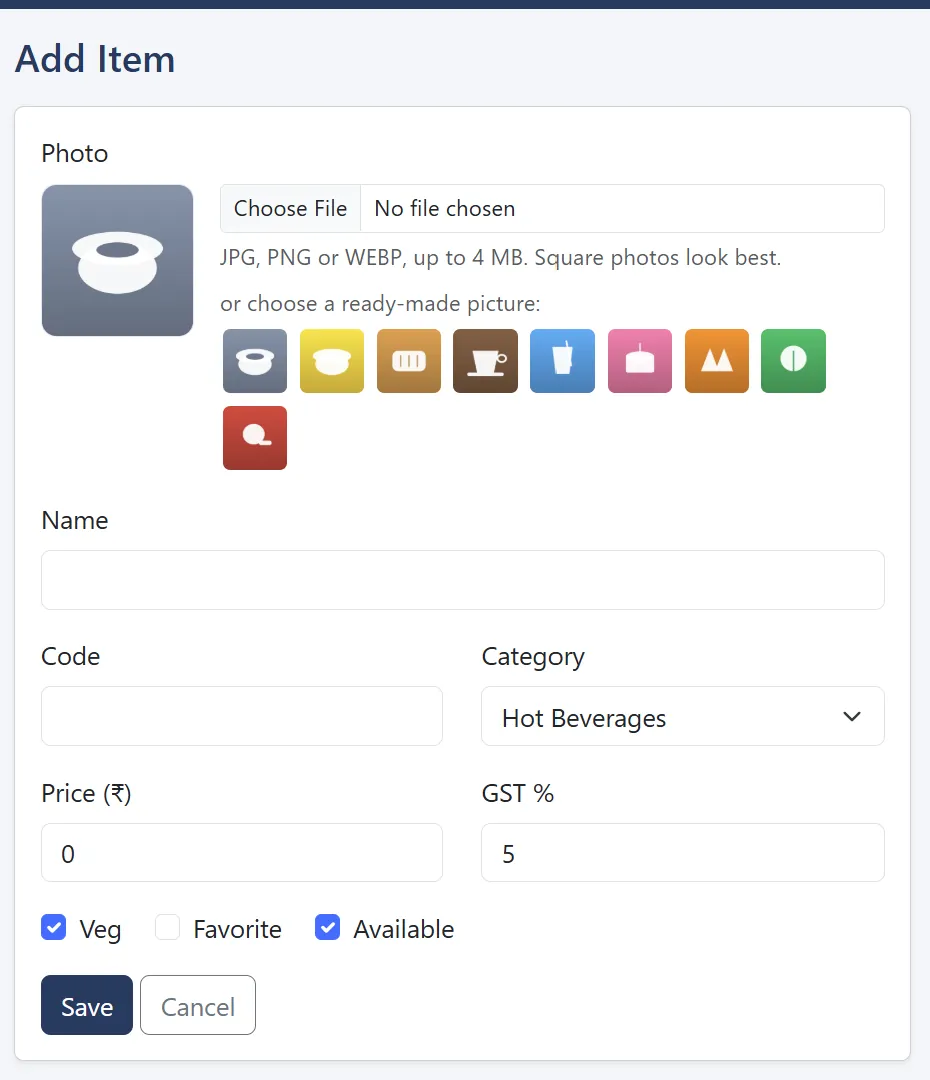
- Item photos: upload your own or choose a built-in picture
Cash drawer shifts and the Z-report
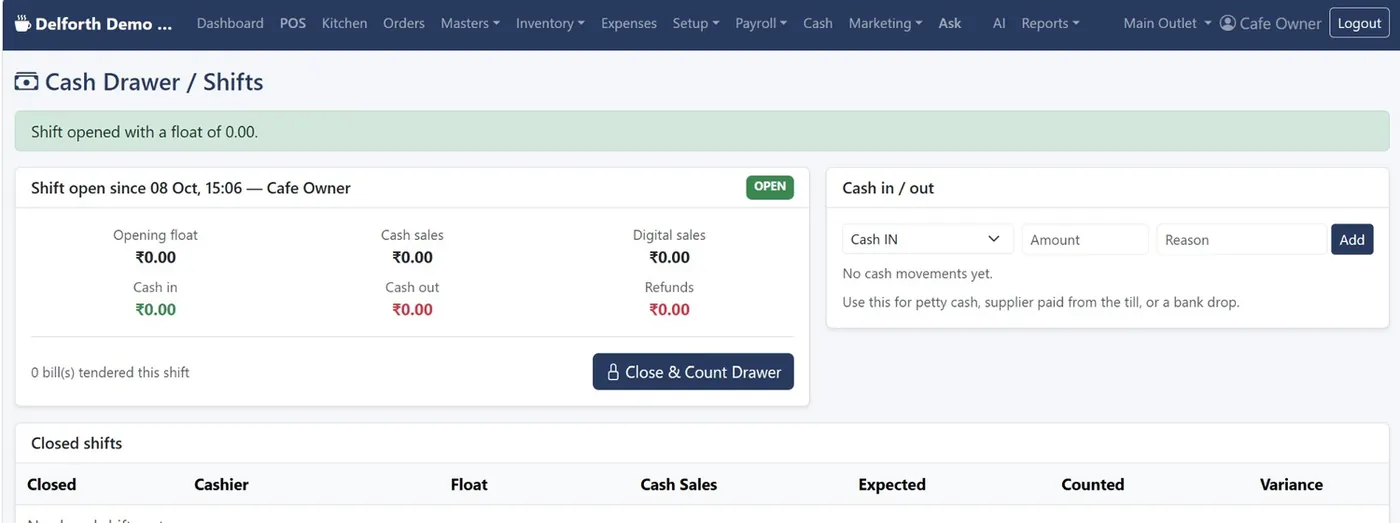
Open a shift with the float, record cash in and out with a reason, and close with a blind count.
- Every cash, card and UPI payment attaches to the open shift
- Expected versus counted, with variance per shift
- Printable Z-report to sign at shift end
- Cash Variance report across shifts to spot a habit, not just a bad day
Raw materials and stock you can trust
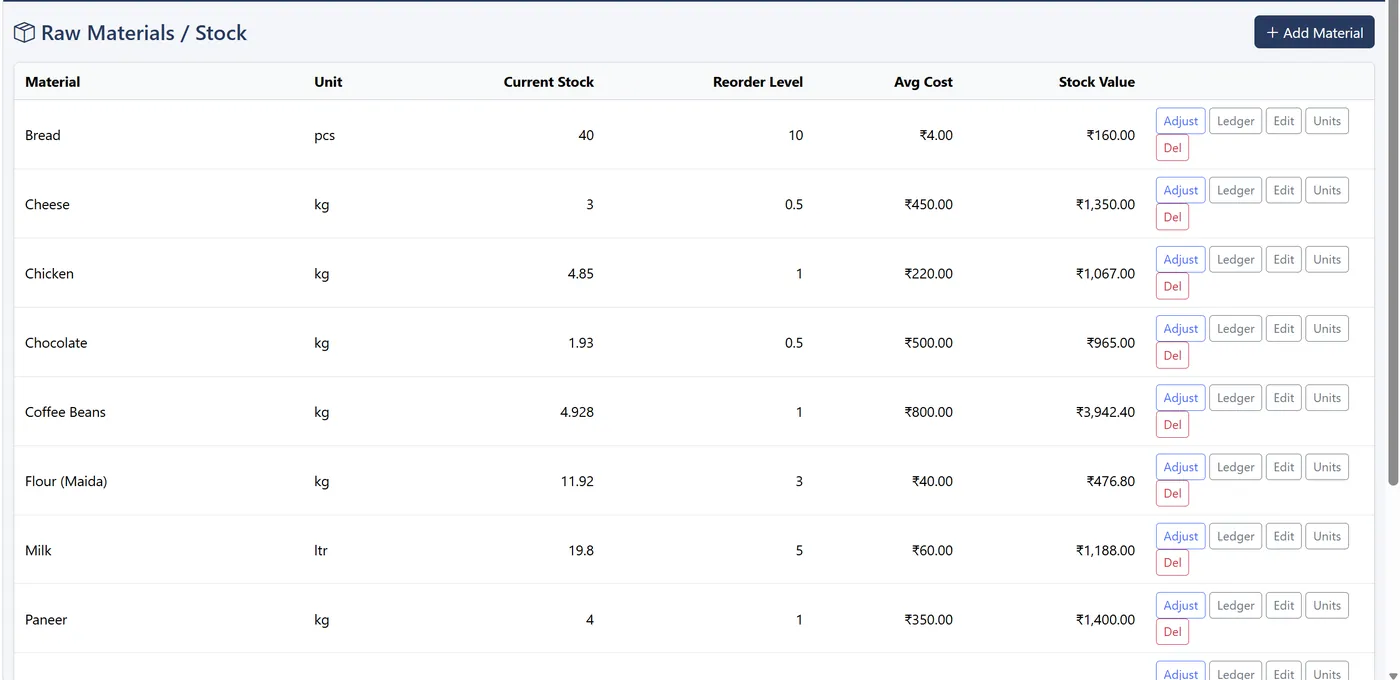
One row per ingredient with unit, current stock, reorder level, average cost and stock value.
- Low stock rows highlighted and listed in dashboard alerts
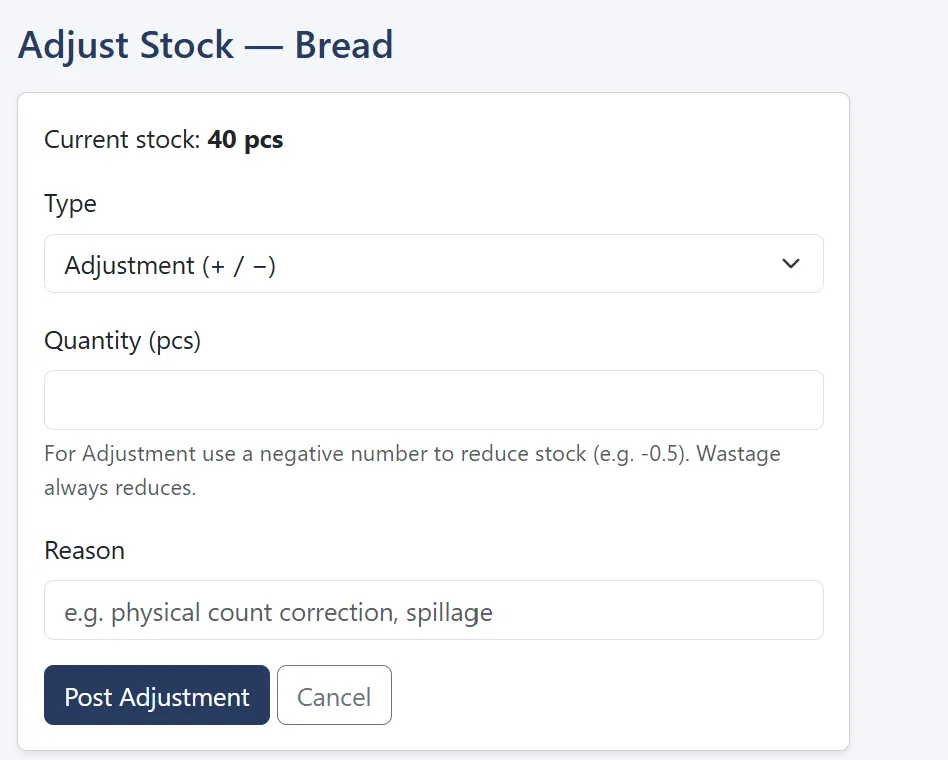
- Adjust with a reason, record wastage, and see a full ledger per item
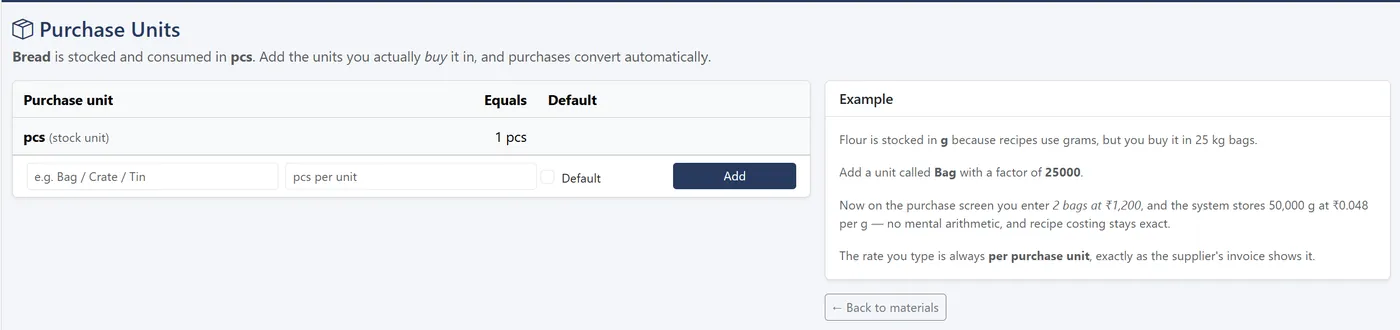
- Purchase units: stock in grams, buy in 25 kg bags, and conversions happen for you
- Monthly physical stock count with approval
- Branch transfers with goods in transit and a printable challan
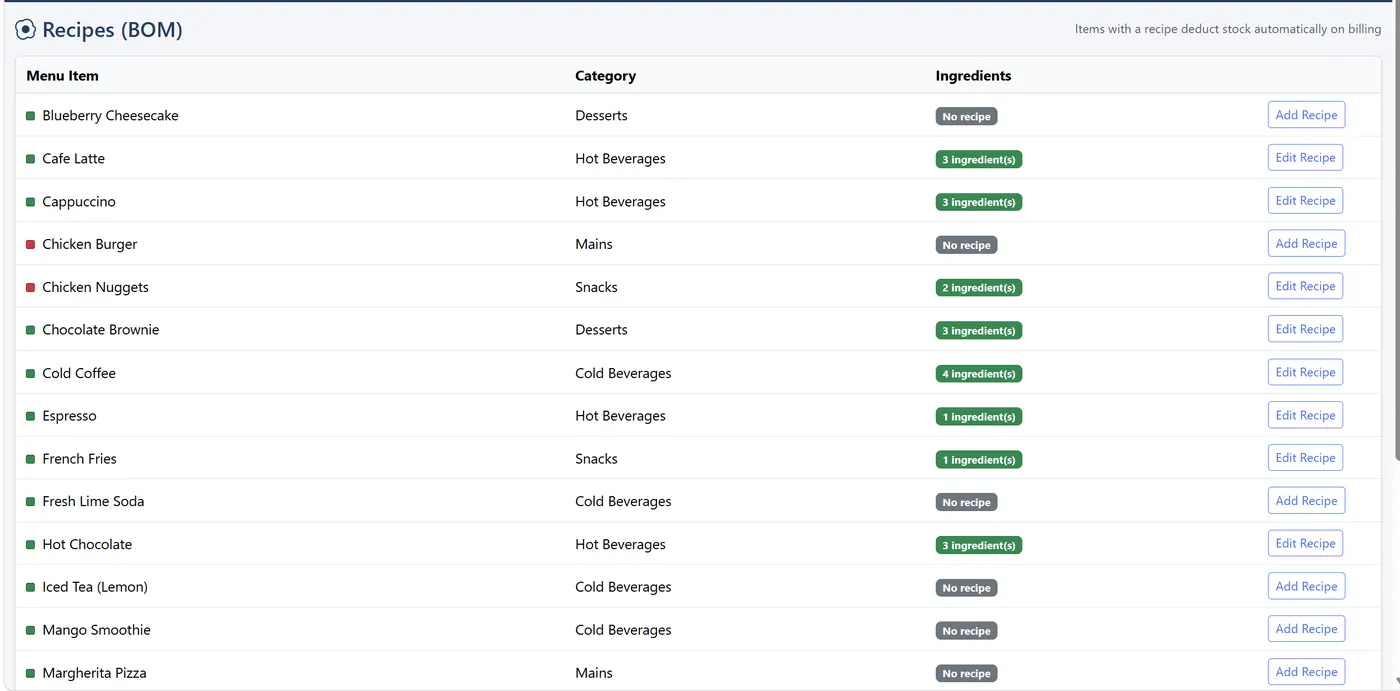
Recipes (BOM) that deduct stock on every sale
List the ingredients and quantity per serving for each dish. Selling the dish then consumes those ingredients from the outlet that billed it.
- True food cost per dish, feeding gross profit in Profit & Loss
- Margins for menu engineering
- Works with sizes and prepared items
Purchases, returns and supplier payables
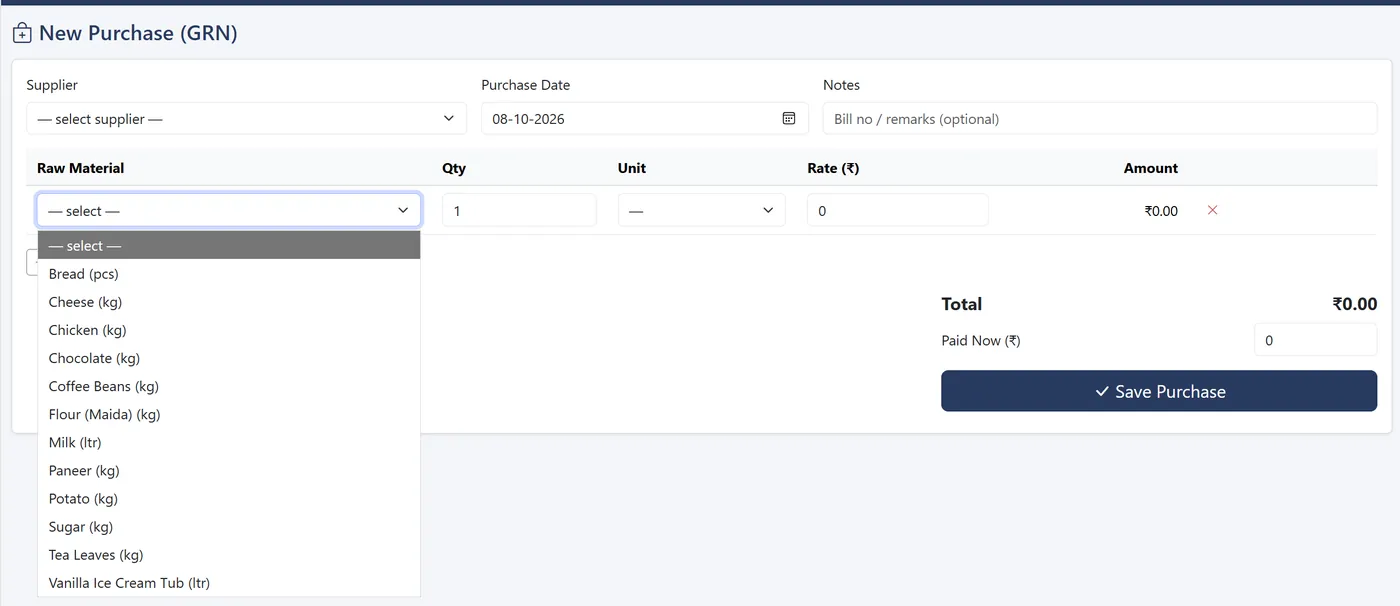
Record each supplier bill as a GRN. Stock rises and the weighted average cost updates: 10 kg at ₹100 on top of 10 kg at ₹80 averages to ₹90.
- Supplier, invoice date and bill number on each purchase
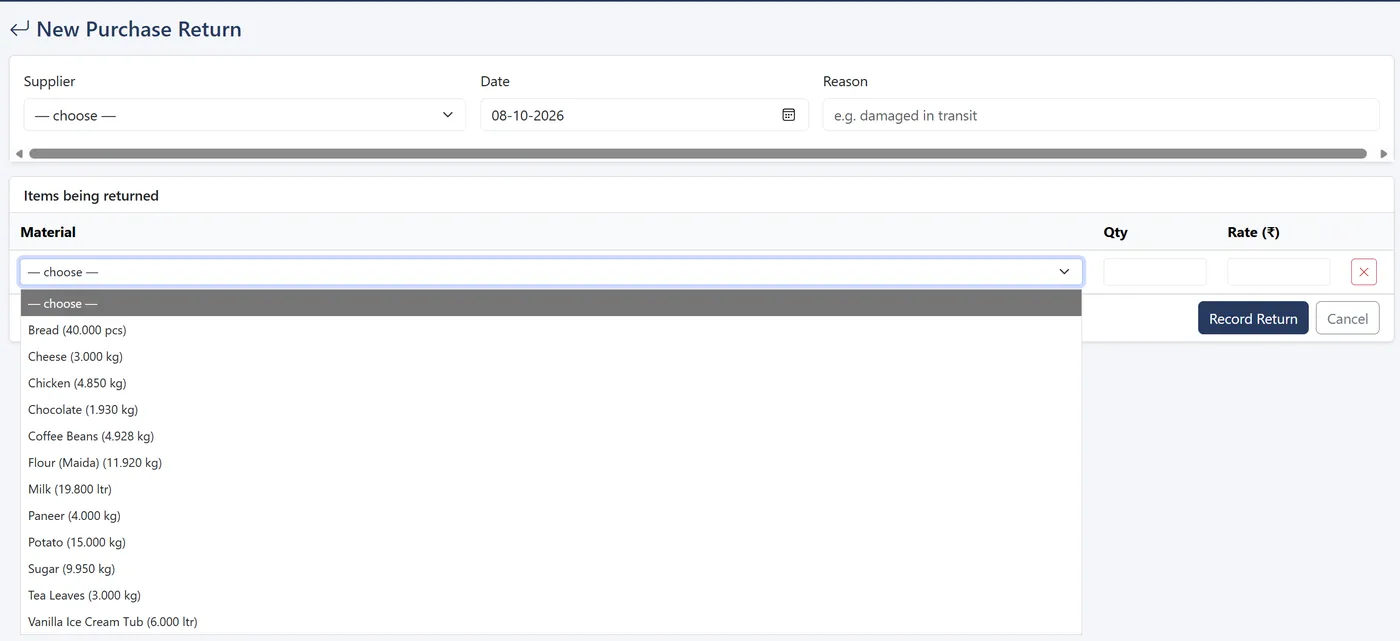
- Purchase returns reduce stock and the supplier balance together
- Payables aged into 0–30, 31–60, 61–90 and 90+ days
- Payments applied to the oldest bill first, as suppliers expect

Prepared items for what your kitchen makes
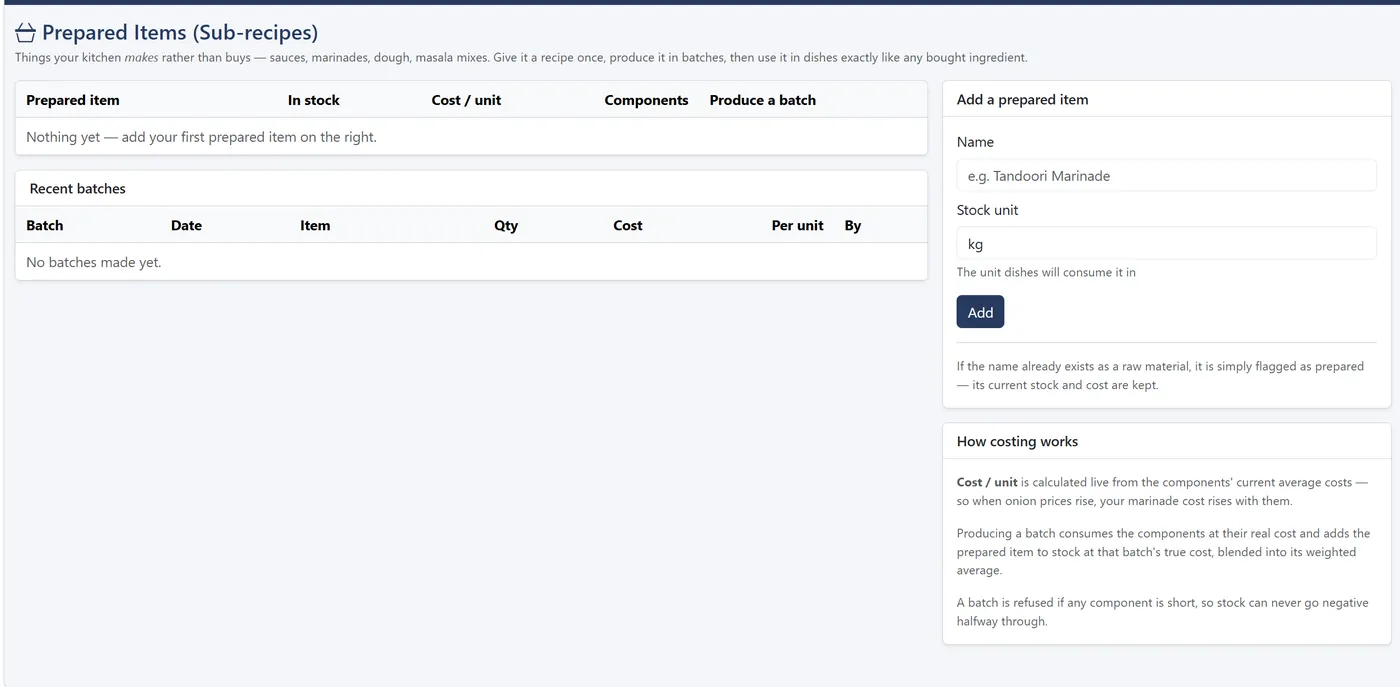
Sauces, marinades, dough and masala mixes get their own recipe and are produced in batches.
- Components leave stock at real cost; the batch enters at its true cost
- Cost per unit follows current ingredient prices
- A batch is refused if any component is short, so stock never goes negative
Staff, attendance kiosk and payroll
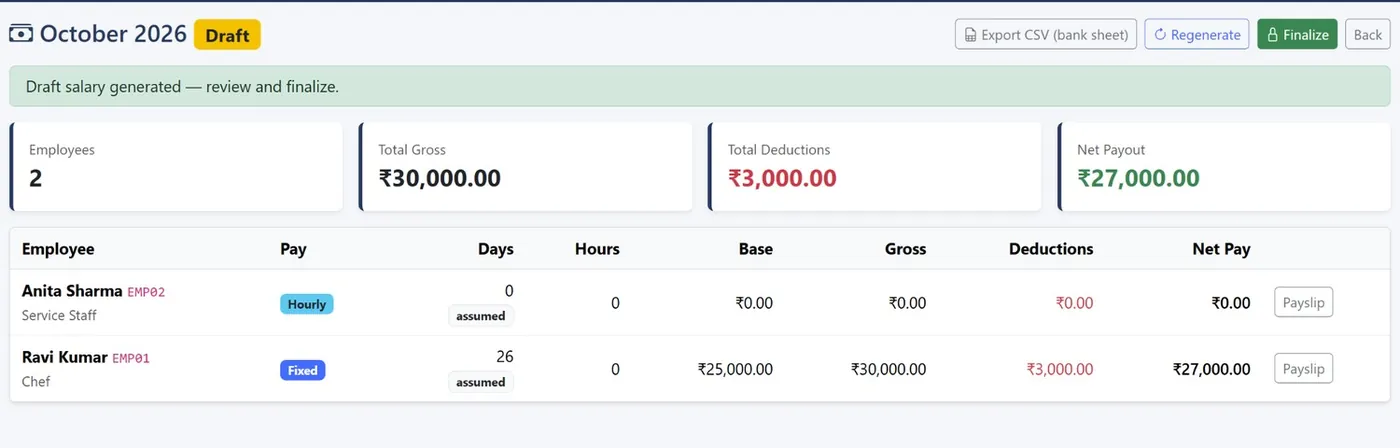
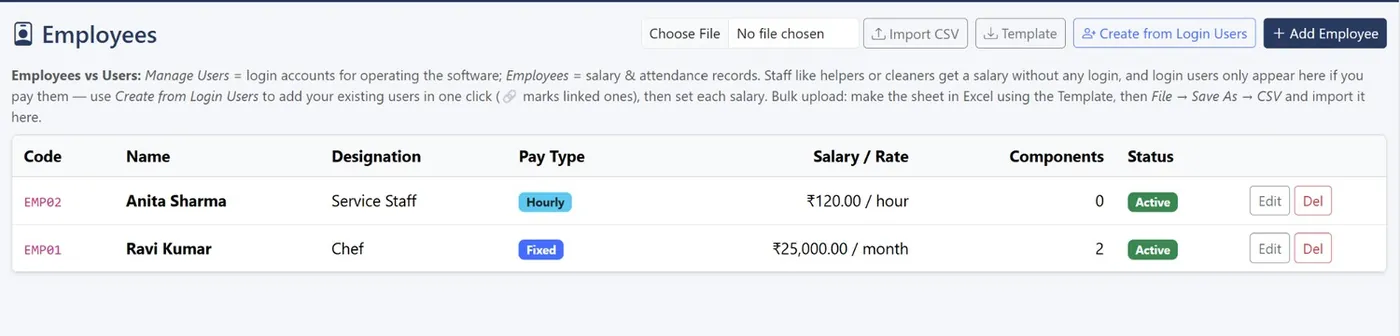
Employees are salary and attendance records; logins are separate, so a helper who never signs in still gets paid properly.
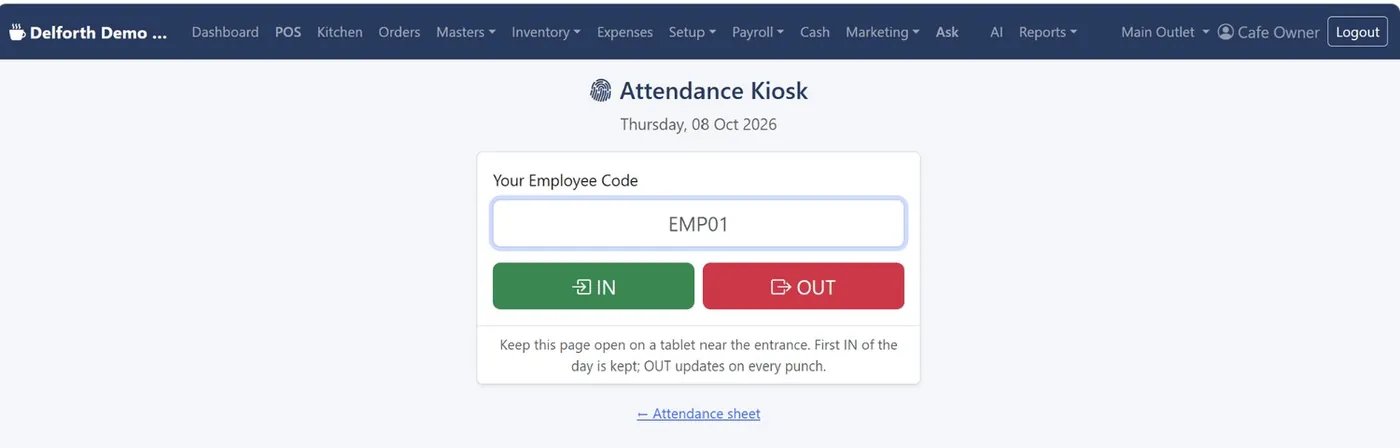
- Punch kiosk on a tablet: staff type their code and press IN or OUT
- Daily register with Present, Half day, Absent, Paid leave and Holiday
- Fixed monthly or hourly pay, with allowances and deductions
- Generate, review and finalise a month's salary with payslips
- CSV import for attendance and bank sheet export
Payroll and attendance are part of the Enterprise plan.
Reports for owners, accountants and auditors
The Reports menu groups everything into Sales & Finance, Inventory, Control & Audit and Smart Insights.
- Sales Report by day, item, type and payment mode
- Day Book: one row per day with orders, cancellations, GST, cash, digital and expenses
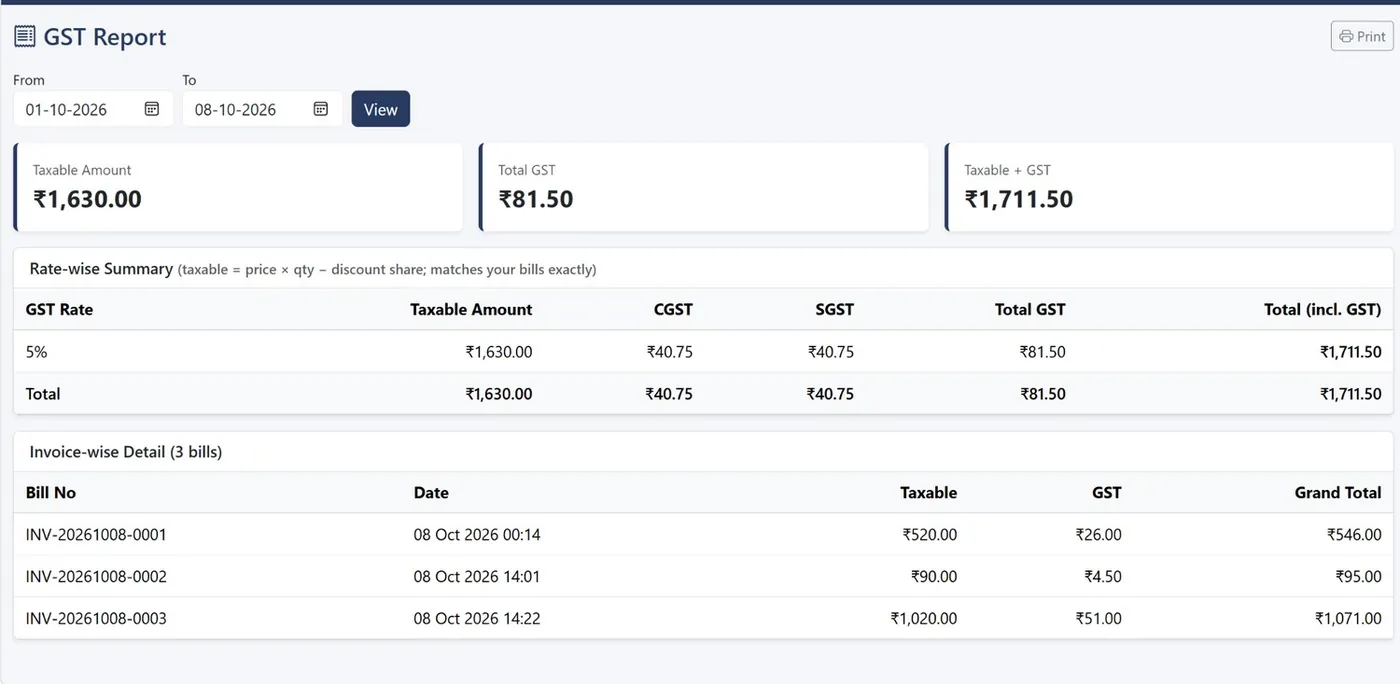
- Tax Report (GST): rate-wise summary with CGST and SGST plus invoice-wise detail
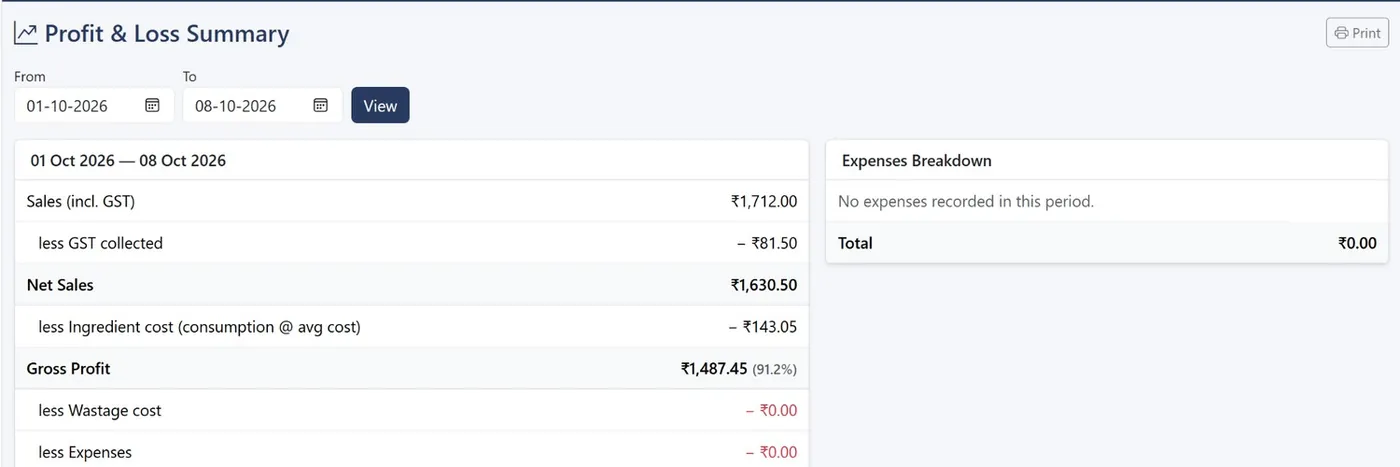
- Profit & Loss: sales, ingredient cost, wastage, expenses and operating profit
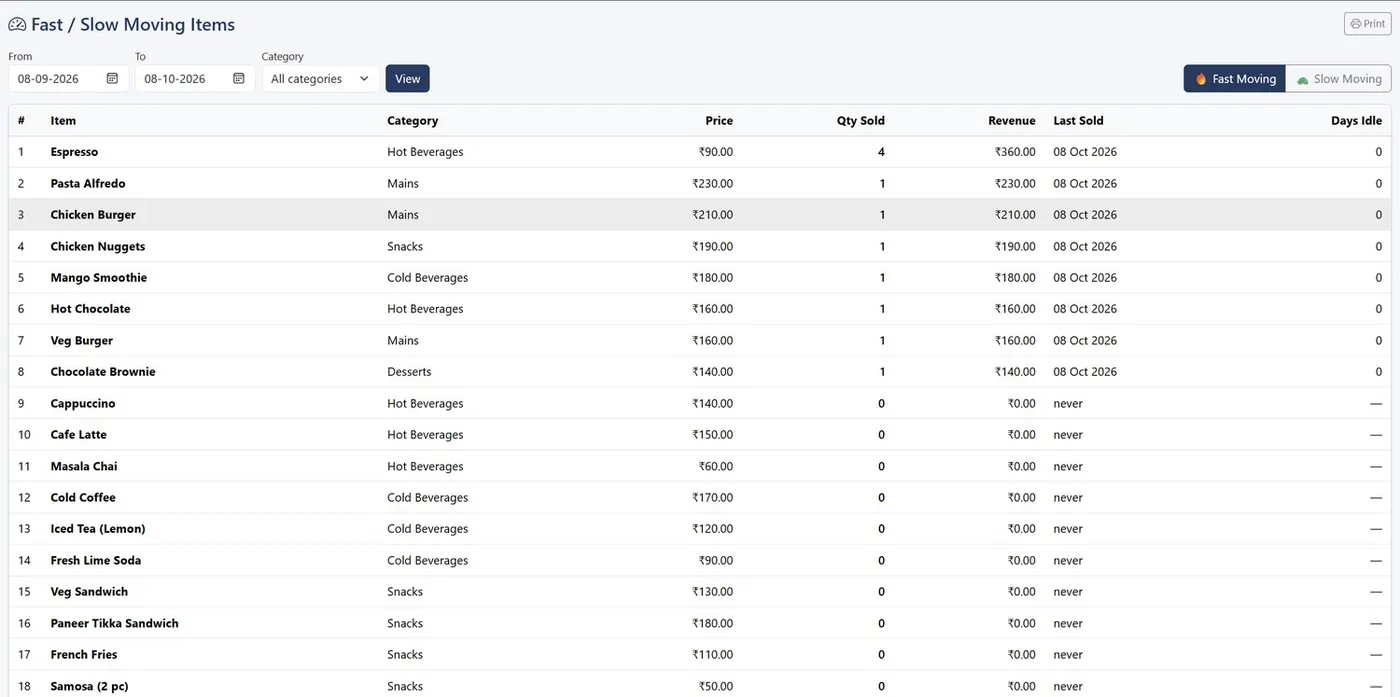
- Stock Report, Item Ledger, Wastage Report, Fast and Slow Items, Supplier Payables
- Cash Variance, Discount and Void Audit, Audit Log
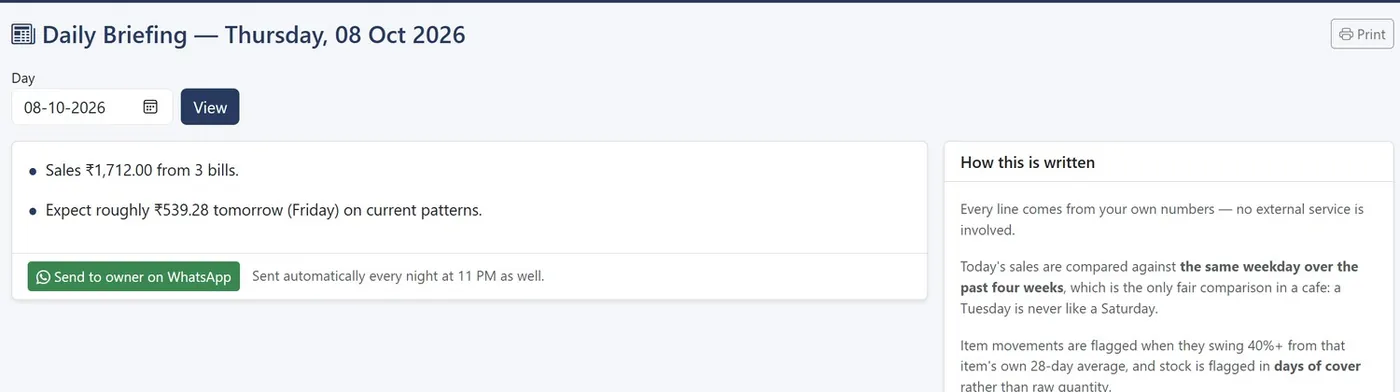
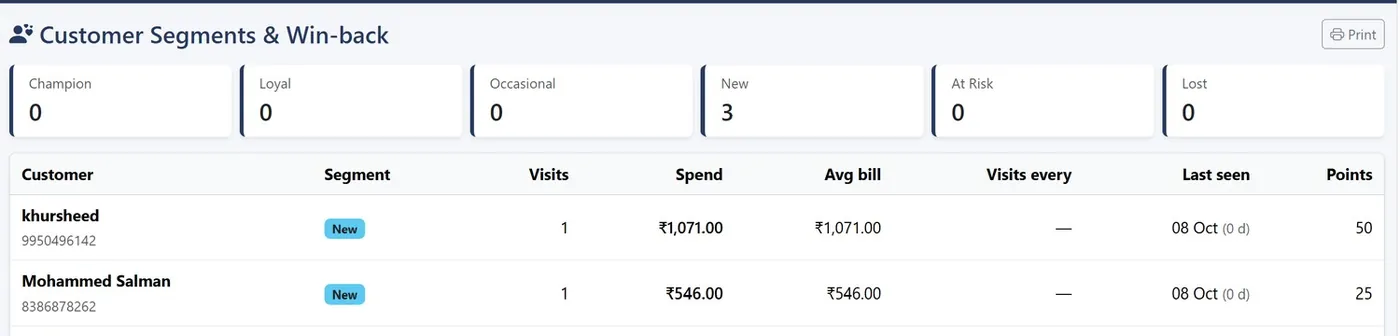
- Daily Briefing, Kitchen Prep List, Sells Together, Customer Win-back, Shrinkage Detector
AI insights from your own sales
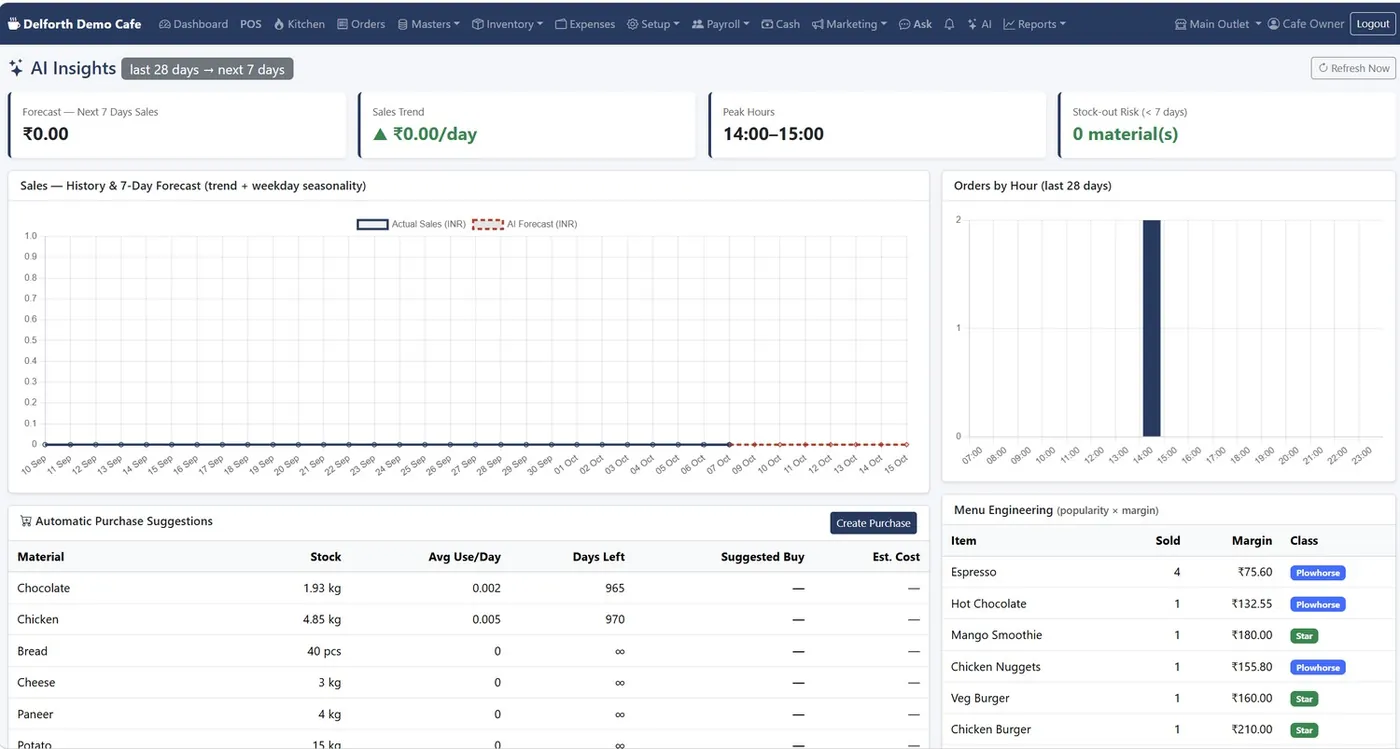
Analyses the last 28 days. All of it runs on your cafe's data, with no external service involved.
- Sales forecast for the next 7 days, learning trend and weekday rhythm
- Peak hours, so you staff the rush
- Stock-out risk within 7 days
- Purchase suggestions you turn into a purchase in one click
- Menu engineering: Star, Plowhorse, Puzzle and Dog
- Daily briefing compared with the same weekday over four weeks
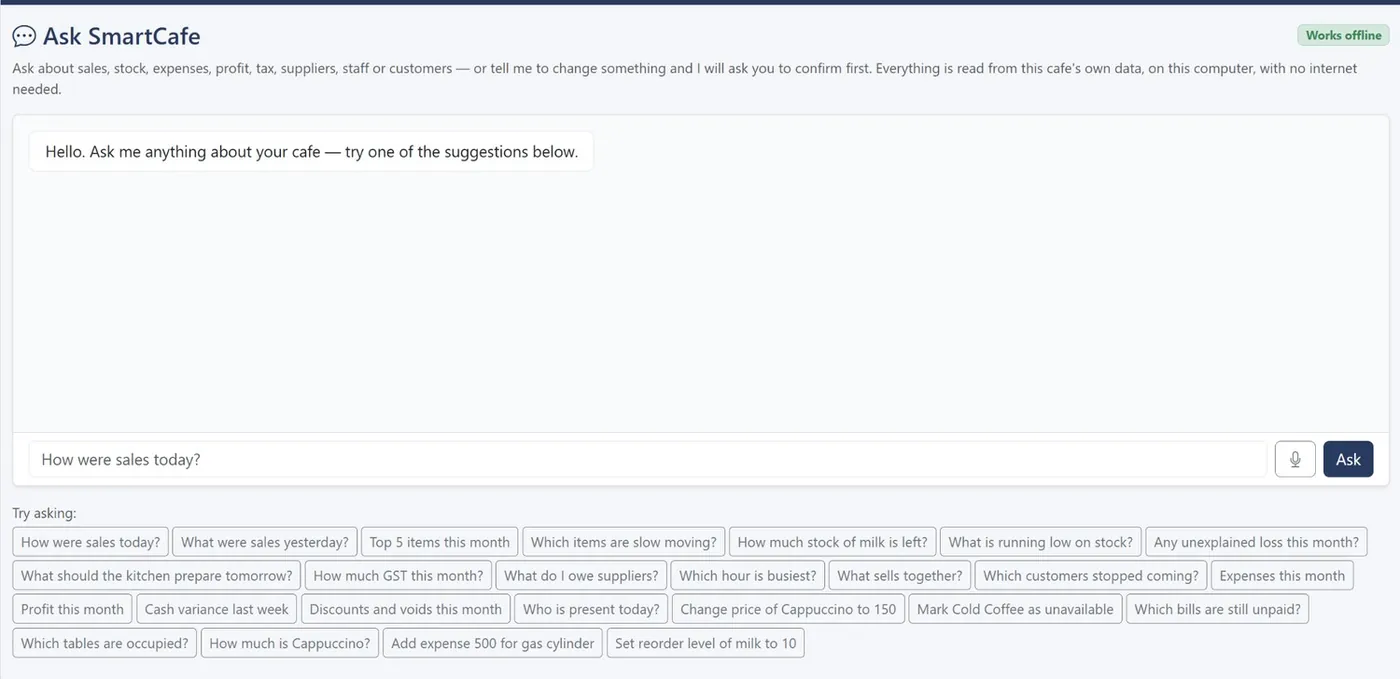
Ask: an assistant that speaks Hindi and Hinglish
Type a question in plain English, Hindi or Hinglish and get the answer from your numbers. Press Ctrl + K on any screen.
- “How were sales today?”, “aaj ki sale kitni hui”, “kal ka kharcha kitna tha”
- Follow-ups like “and yesterday?” or “what about last week?”
- Changes such as “change price of Cappuccino to 150”, applied only after you confirm
- Teach it your words: chai means Masala Chai, doodh means Milk
- The bell shows what needs attention: low stock, unpaid bills, an open drawer
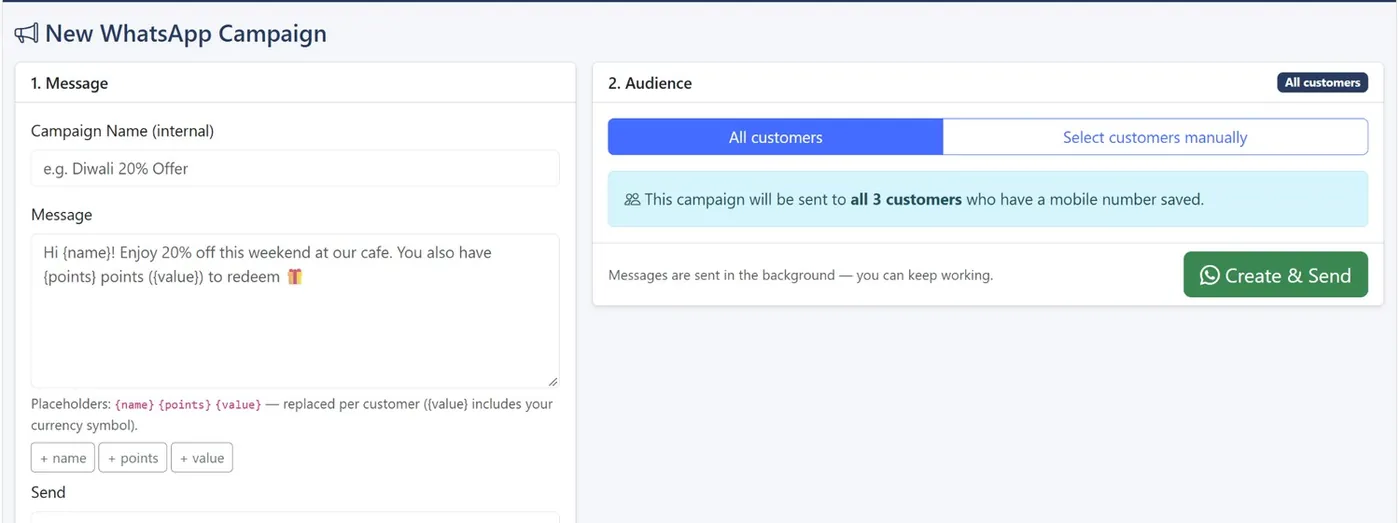
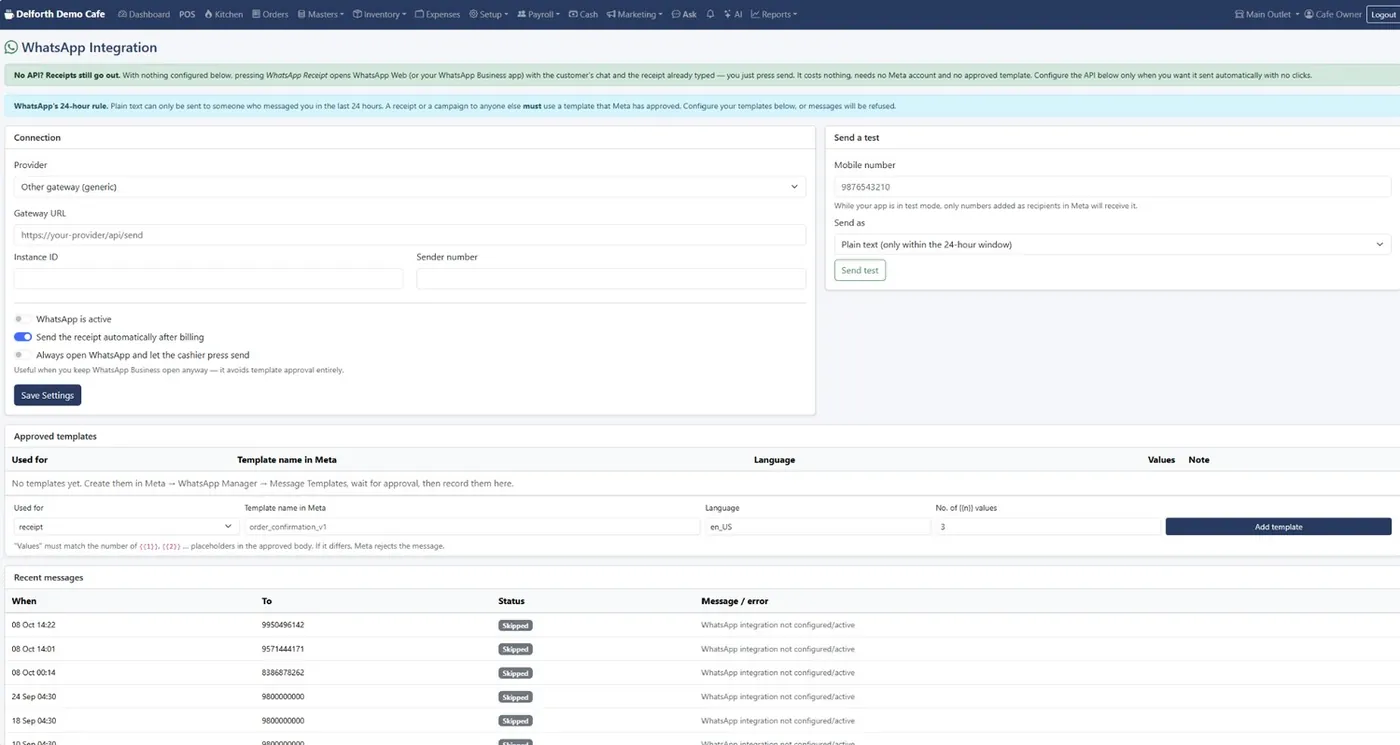
WhatsApp receipts, campaigns and loyalty
Send receipts with one tap and no setup, or fully automatically with the WhatsApp Business API.
- Receipt link the customer can open, print or save as PDF
- Campaigns to all customers or a hand-picked list, sent now or scheduled
- Approved Meta templates recorded for the 24-hour rule
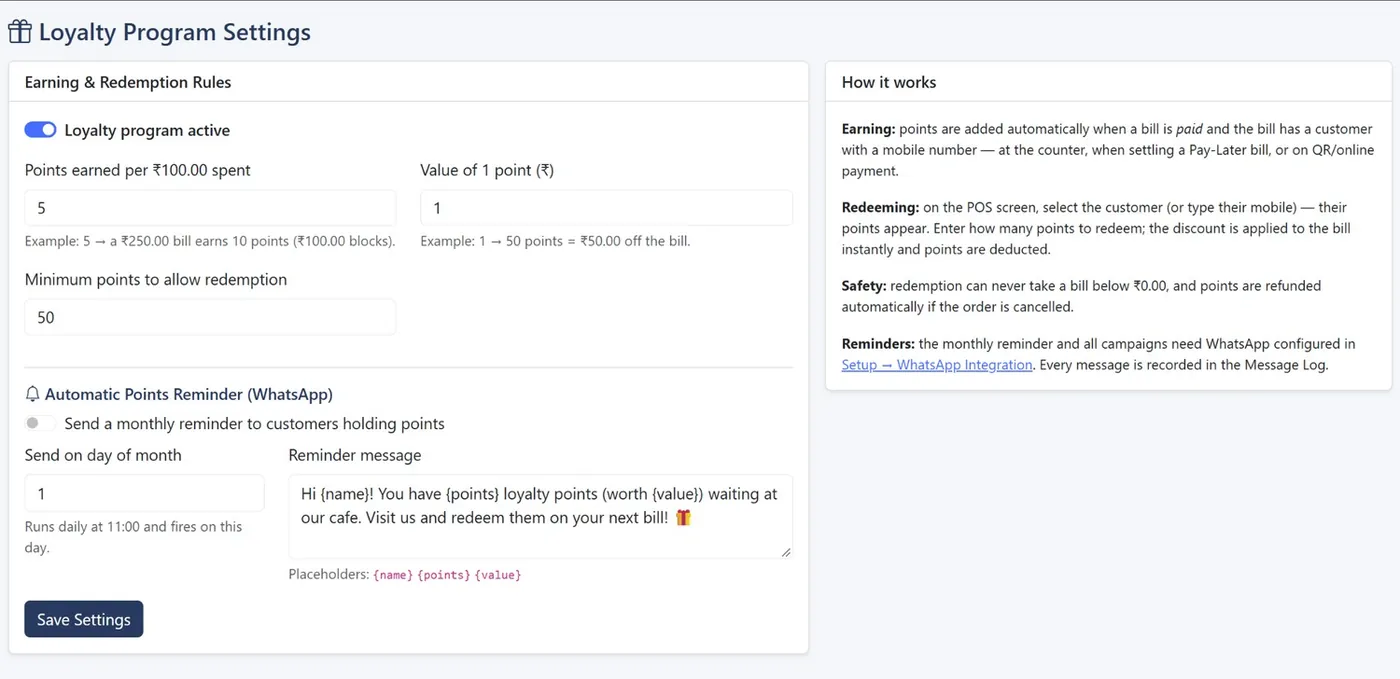
- Loyalty: points per ₹100, value per point and a minimum to redeem
- Automatic monthly points reminder
WhatsApp receipts and campaigns are included in Growth and Enterprise.
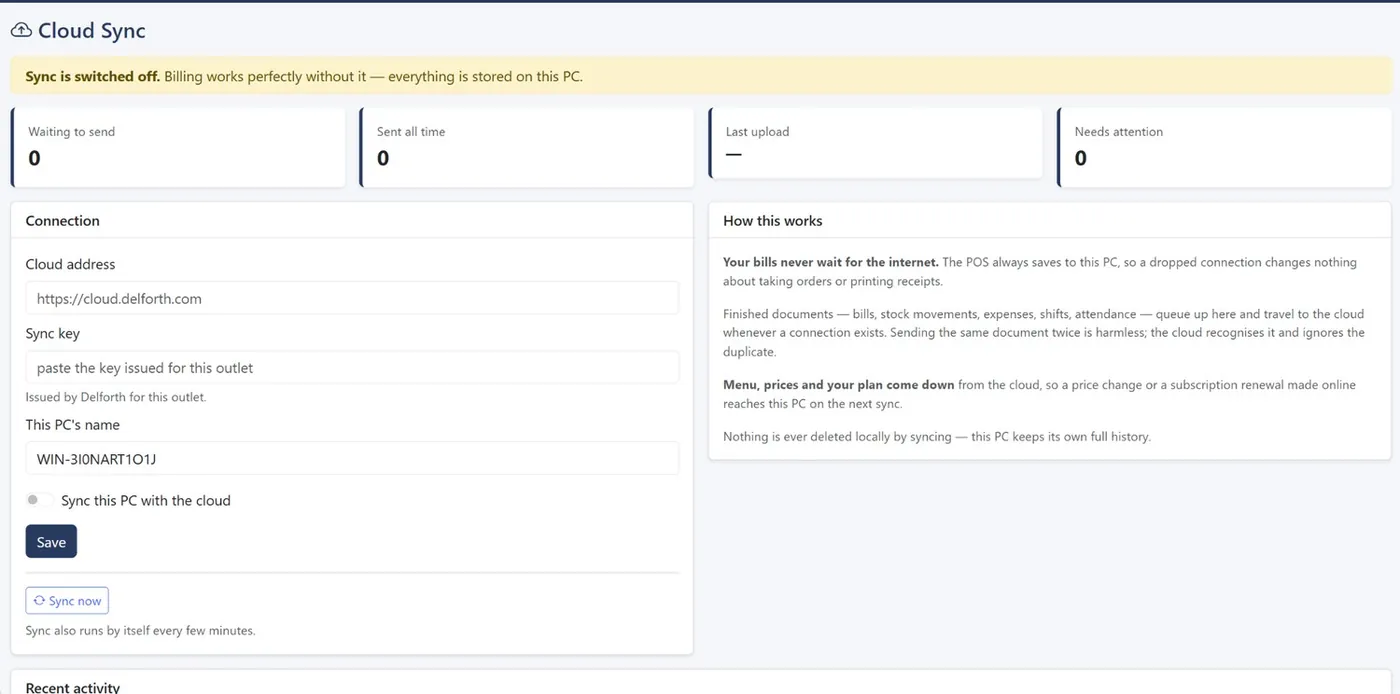
Multiple outlets, offline billing and cloud sync
Switch outlets from the top bar. Each keeps its own tables, orders, kitchen, stock, purchases and expenses, while menu, customers and settings are shared.
- Branch performance for every outlet on the dashboard
- The cafe PC records every sale locally, so billing never waits for the internet
- Status at a glance: Online, Working offline, Waiting to send, Needs attention
- Sync runs every few minutes; nothing is lost or duplicated
- Tablets connect to the cafe PC over the shop's Wi-Fi
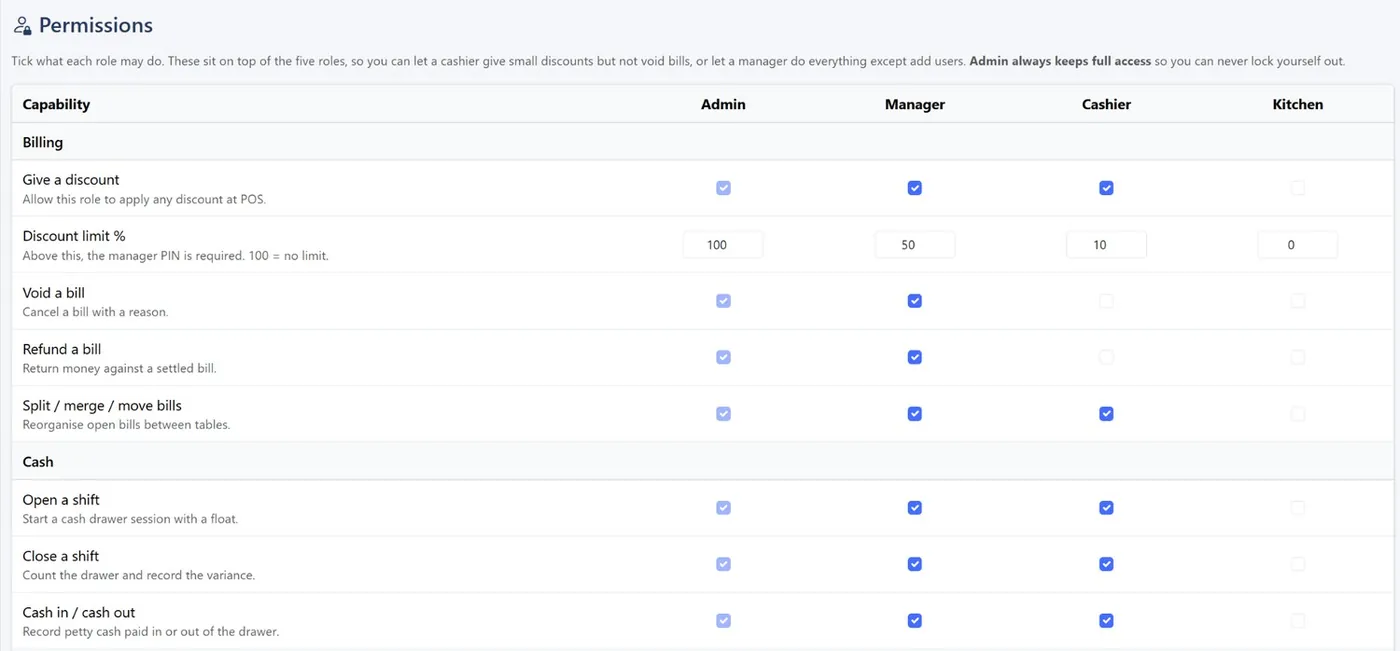
Roles, permissions and the audit log
Give each person their own login with the lowest role that fits: Admin, Manager, Cashier or Kitchen.
- Sixteen rights per role, from discounts and voids to viewing financial reports
- Maximum discount per role, manager PIN above it
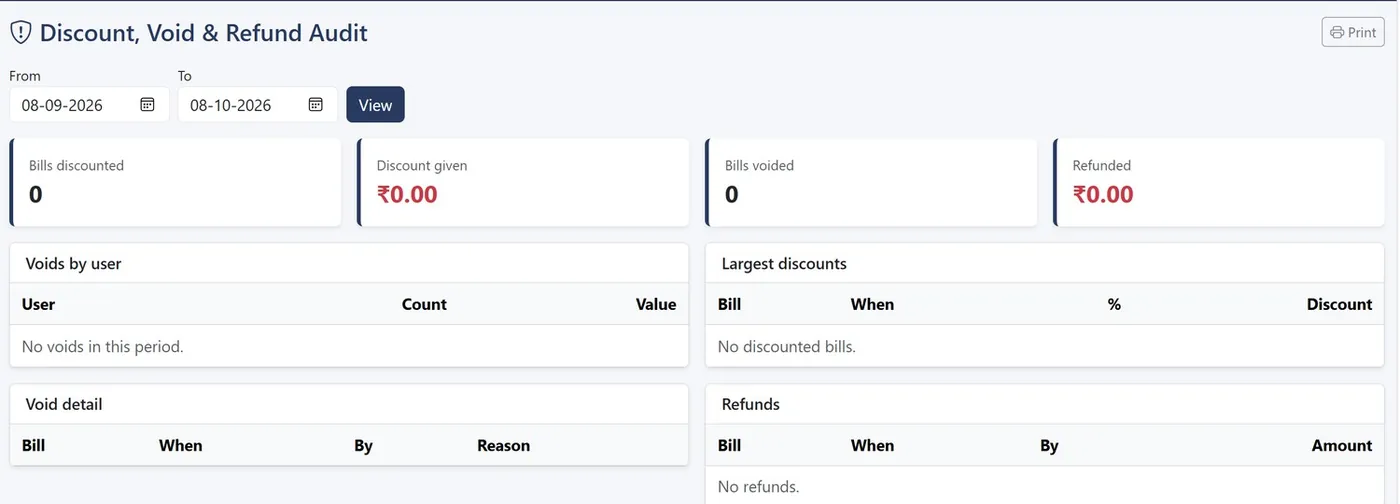
- Audit log of who changed a price, voided a bill or opened a drawer
- Discount, Void and Refund Audit report
Set up once, in this order
Each step takes a few minutes. Choose your country and currency, then billing settings, menu, tables and staff.
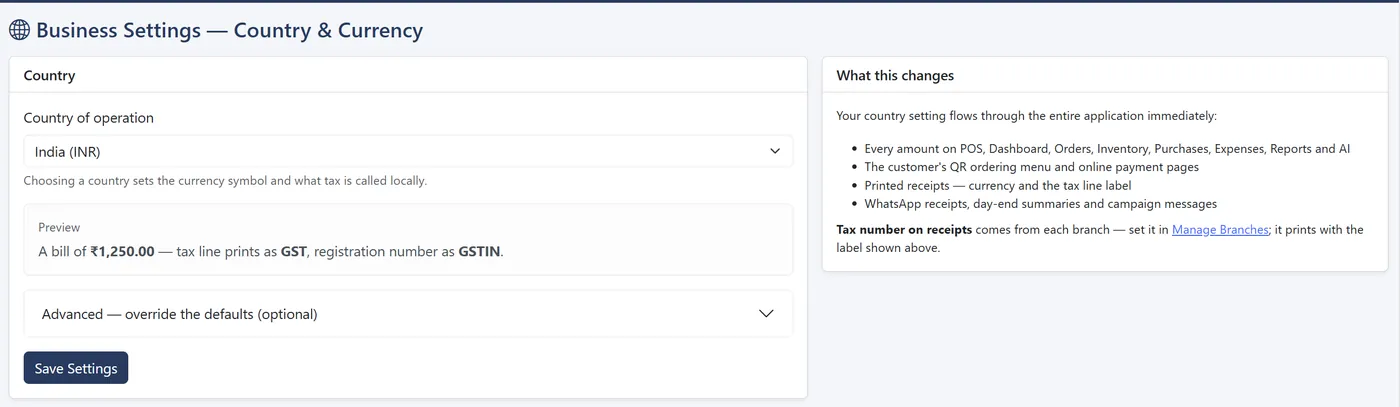
- Country sets currency symbol, decimals and whether tax prints as GST or VAT
- Prices including or excluding tax, decided before you start billing
- Categories with colour and sort order; items with code, price, GST % and photo
- Payment gateways that collect money into your own account
Want to see these screens with your menu?
Tell us a little about your cafe. We'll set up a 20-minute demo with your items, your tax setup and your outlets, on a call or on WhatsApp.
- Call or WhatsApp+91 83868 78262 · Chat on WhatsApp
- Prefer to try it yourself?Start the 14-day free trial